
Bitwarden is an open-source password manager application designed to store and encrypt all of its users’ passwords and digital credentials. With its encrypted cloud-based storage system, Bitwarden allows you to securely store thousands of login credentials, credit card information, and other important notes. You can also easily access all this data on various devices, such as computers, laptops, and mobile phones. Security is at the heart of Bitwarden. All your stored data is locked using end-to-end encryption, meaning the encryption process occurs directly on your device before the data is sent to the server. In this article, we will show you how to install Bitwarden on Ubuntu 26.04.
Prerequisites
- An Ubuntu 26.04 VPS
- SSH root access, or a user with sudo privileges
- A domain or subdomain pointing to your server
Conventions
# – given commands should be executed with root privileges either directly as a root user or by use of sudo command
$ – given commands should be executed as a regular user
Step 1. Update the System
First of all, we need to log in to our Ubuntu 26.04 VPS through SSH:
ssh root@IP_Address -p Port_numberReplace “root” with a user that has sudo privileges. Additionally, replace “IP_Address” and “Port_Number” with your server’s respective IP address and SSH port number. Next, let’s make sure that we’re on Ubuntu 26.04. You can verify it with this command:
# lsb_release -aYou should get this as the output:
No LSB modules are available.
Distributor ID: Ubuntu
Description:    Ubuntu Resolute Raccoon
Release:        26.04
Codename:       resolute
Then, run the following command to make sure that all installed packages on the server are updated to their latest available versions:
# apt update That’s it, the system package information should be updated now.
Step 2. Install Docker
At the time of this writing, Docker for Ubuntu 26.04 is not available at Docker’s apt repository. We can install Docker from the Ubuntu Resolute repository. Let’s execute the command below to install Docker.
# apt install docker.io docker-compose-pluginThe command above will prompt you to continue or not
Installing:
  docker.io docker-compose-plugin

Installing dependencies:
  bridge-utils  dns-root-data  git      iptables  liberror-perl  libip6tc2                libnfnetlink0  libnftnl11  patch  runc
  containerd    dnsmasq-base   git-man  less      libip4tc2      libnetfilter-conntrack3  libnftables1   nftables    pigz   ubuntu-fan

Suggested packages:
  ifupdown    cgroupfs-mount  debootstrap    docker-compose-v2  rinse     | zfsutils  git-email  gitk    git-cvs  firewalld  diffutils-doc
  aufs-tools  | cgroup-lite   docker-buildx  docker-doc         zfs-fuse  git-doc     git-gui    gitweb  git-svn  ed

Summary:
  Upgrading: 0, Installing: 21, Removing: 0, Not Upgrading: 0
  Download size: 72.6 MB
  Space needed: 284 MB / 5438 MB available
Hit ENTER to continue with the installation. Once completed, the Docker service will be automatically running.
Step 3. Add a System User
After logging in to the server as the root user, use the adduser command to add a new user to your system:
# adduser bitwardenMake sure to replace Bitwarden with the username you want to add. You will be prompted to create and verify a password for the user.
You will be asked to fill in some information about the new user you are adding. It’s okay to use the default information and leave it blank.
Enter the new value, or press ENTER for the default
Full Name []:
Room Number []:
Work Phone []:
Home Phone []:
Other []:
Is the information correct? [Y/n]
Step 4. Run Docker without Sudo
We created a system user in the previous step, and we are not supposed to run Docker using root because we will encounter issues during installation. The Docker daemon binds to a Unix socket. When running the Docker command without sudo, you will get this error message:
docker: permission denied while trying to connect to the Docker daemon socket at unix:///var/run/docker.sock: Head "http://%2Fvar%2Frun%2Fdocker.sock/_ping": dial unix /var/run/docker.sock: connect: permission denied

Run 'docker run --help' for more information
To run Docker commands without sudo, we need to add the user we want to the Docker group:
# usermod -aG docker $USERFor example, let’s add the user “bitwarden” to the Docker group:
# usermod -aG docker bitwardenStep 5. Install Bitwarden
In this step, we will use the Bitwarden installation script. But for now, we can create a new directory and fix its permissions first.
# mkdir /opt/bitwarden
# chmod -R 700 /opt/bitwarden
# chown -R bitwarden: /opt/bitwarden
Next, we can switch to the ‘bitwarden’ user.
# su - bitwardenThen, we can download the installation script.
$ curl -Lso bitwarden.sh "https://func.bitwarden.com/api/dl/?app=self-host&platform=linux" && chmod 700 bitwarden.shLet’s run the installation script.
./bitwarden.sh installAfter running this script, a ./bwdata directory will be created relative to the location of bitwarden.sh file.
The script will show a similar message:
| |__ (_) |___      ____ _ _ __ __| | ___ _ __
| '_ \| | __\ \ /\ / / _` | '__/ _` |/ _ \ '_ \
| |_) | | |_ \ V  V / (_| | | | (_| |  __/ | | |
|_.__/|_|\__| \_/\_/ \__,_|_|  \__,_|\___|_| |_|

Open source password management solutions
Copyright 2015-2026, Bitwarden, Inc.
https://bitwarden.com, https://github.com/bitwarden

===================================================

bitwarden.sh version 2026.2.1
Docker version 29.1.3, build 29.1.3-0ubuntu1
Docker Compose version v5.1.0

(!) Enter the domain name for your Bitwarden instance (ex. bitwarden.example.com): bitwarden.yourdomain.com

(!) Do you want to use Let's Encrypt to generate a free SSL certificate? (y/n): y

(!) Enter the database name for your Bitwarden instance (ex. vault):
You will be prompted for a few questions. When the installation asks you to input the installation ID and key, you need to get them from https://bitwarden.com/host/
Once completed, you will see this output:
Building nginx config.
Building docker environment files.
Building docker environment override files.
Building FIDO U2F app id.
Building docker-compose.yml.

Installation complete

If you need to make additional configuration changes, you can modify
the settings in `./bwdata/config.yml` and then run:
`./bitwarden.sh rebuild` or `./bitwarden.sh update`

Next steps, run:
`./bitwarden.sh start`
So, every time we modify the configuration file at bwdata/config.yml, we need to rebuild/update it. For now, we can start Bitwarden
./bitwarden.sh startIt will take a while to start the service. Wait until it finishes, and you should be able to access Bitwarden at https://vault.yourdomain.com or at the actual domain/subdomain you used during the installation.
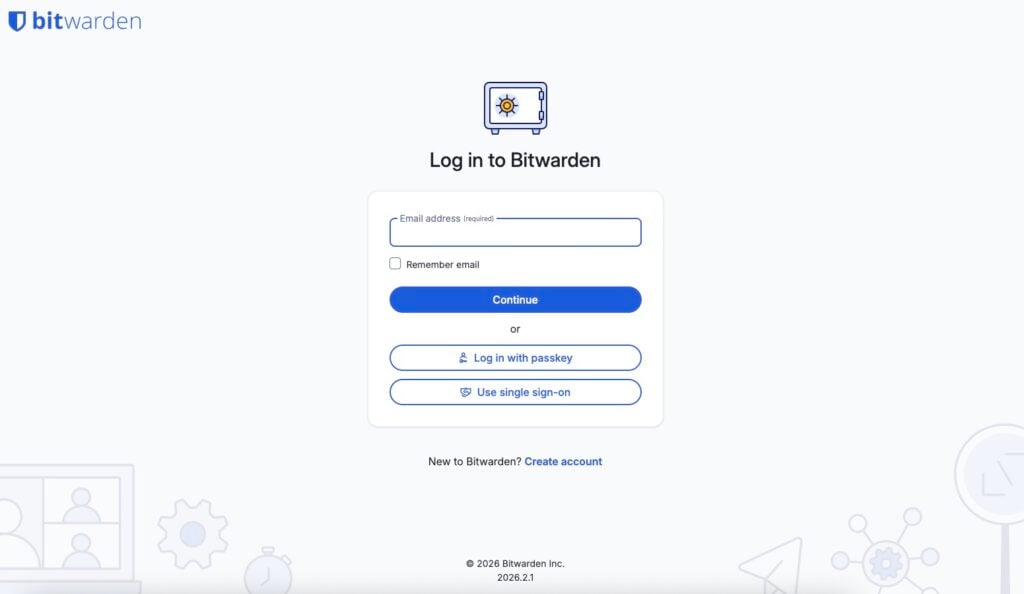
Of course, you need to create an account first before logging in.
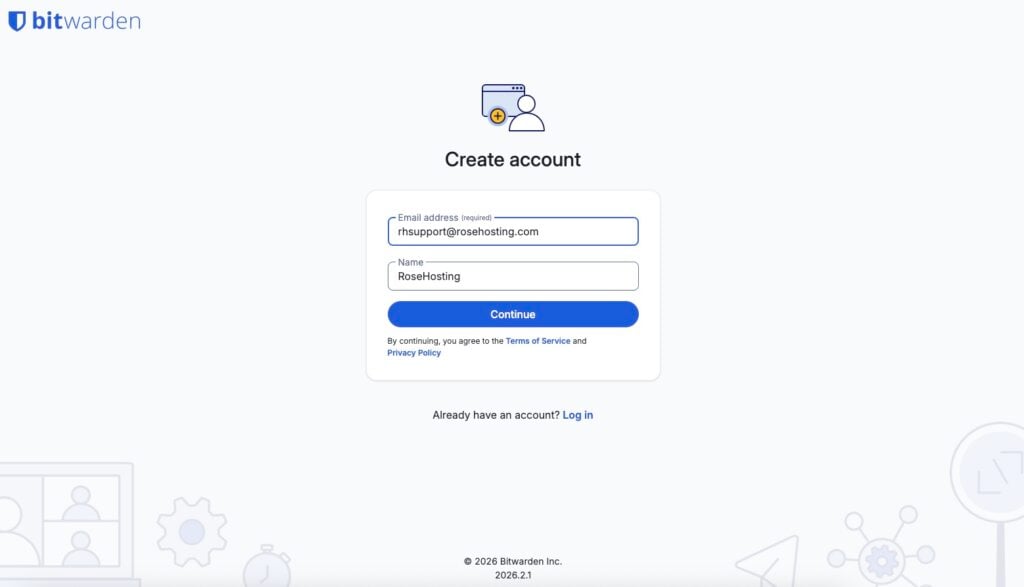
Make sure to use a strong password when creating an account.
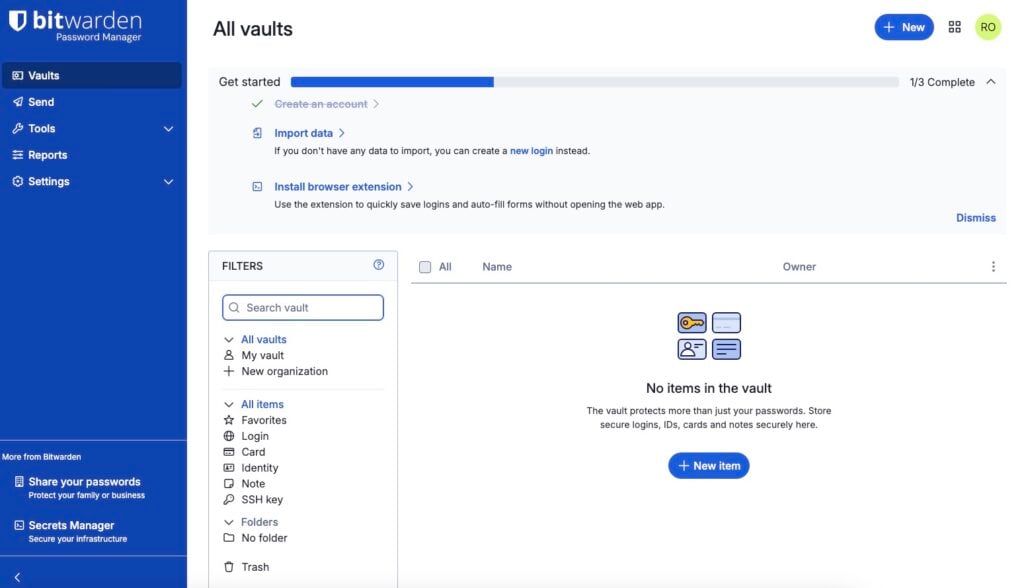
Wrap Up
Finally, you can reach the Bitwarden backend using your new account. To use Bitwarden, you can start by downloading the browser extension and adding your passwords.
That’s it! You have learned how to install Bitwarden on Ubuntu 26.04.
If you have difficulties with the installation, our Linux admins will help you. Sign up for one of our monthly server management or per-incident server support plans and submit a support ticket. Our expert system administrators will help you install and configure Bitwarden on your Ubuntu server.
If you liked this post about installing Bitwarden on Ubuntu 26.04, please share it with your friends or leave a comment below. Thanks.
