
Wget is a free command-line tool for downloading files from the Internet. It can fetch files from servers via HTTP, HTTPS, and FTP. The Wget command-line tool can resume interrupted downloads, download multiple files at once, and limit bandwidth usage. It is supported on almost all Linux distributions and comes preinstalled on the most popular ones. In this tutorial, we will show you how you can install Wget on AlmaLinux 10. Let’s get started now.
Requirements
- An AlmaLinux VPS with root access enabled or a user with sudo privileges.
Connect to your VPS
Before starting, connect to your server via SSH as the root user or as any other user with sudo privileges.
To connect to your server as the root user, use the following command:
$ ssh root@IP_ADDRESS -p PORT_NUMBERMake sure to replace IP_ADDRESS and PORT_NUMBER with your actual server IP address and SSH port number. The default port number is 22, so try that one first if you’re not sure.
Install Wget
As we previously mentioned, the Wget tool may come preinstalled on some Linux distributions. In any case, we will show you how to install Wget on your AlmaLinux 10 server from the command line.
After logging on to your server, you can run the command:
$ yum update -yTo download and install the latest packages available. Then you can run the following command to install Wget:
$ yum install wget -yYou can check if Wget is installed by running the command:
$ wget –verisonAnd you should get a similar output:
GNU Wget 1.24.5 built on linux-gnu.Downloading a file
From the Wget –help page, the Wget tool is used in the following manner:
Usage: wget [OPTION]… [URL]..To download a single file from a remote server, you can simply run the command
# wget http://URL/somefile
# wget https://URL/somefile

For example:
# wget https://freetestdata.com/wp-content/uploads/2021/09/Free_Test_Data_100KB_RTF.rtfThis will download the Free_Test_Data_100KB_RTF.rtf in the current directory. If you want to download the file to a specific directory, use the following command.
$ wget https://wordpress.org/latest.zip -O /var/www/wordpress/latest.zipYou can also change the name under which the file will be saved by using the -O option:
$ wget https://wordpress.org/latest.zip -O /var/www/wordpress/wordpress.zipThe Wget command can also be used with piping. For example, if you want to download the latest wordpress zip file and extract it directly into a particular directory, you can use the command:
$ wget -qO- https://nodejs.org/dist/latest/node-v25.2.1.tar.gz | tar -xzThis will download and extract the file directly in the current directory, so that you will get the node-v25.2.1 directory.
Download multiple files with Wget.
If you want to download multiple files with Wget.
You can create a file containing the URLs of the files you want to download, then save it.
$ nano fordownload.txt

# Add the URLS in the file, example below

https://nodejs.org/dist/latest/node-v25.2.1.tar.gz
https://wordpress.org/latest.zip

And you can download them now with:
$ wget -i fordownload.txtThis will start downloading the files, and you will see a similar output.
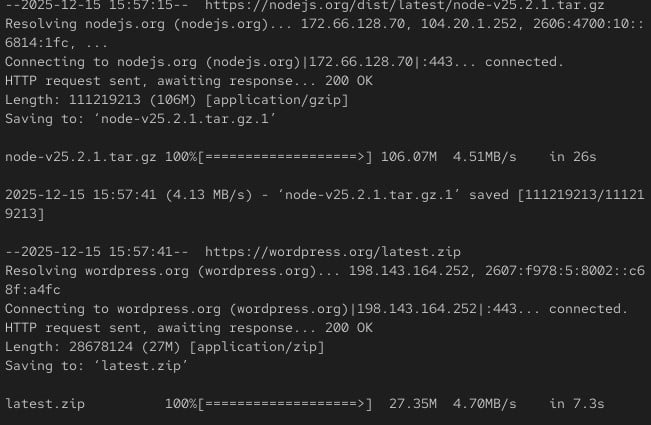
If you want to download the files in the background without any output, simply add the -q flag, and the files will download in the background.
# wget -qi fordownload.txtResuming stopped downloads
If you started downloading a bigger file using the wget -c command and for some reason the download stopped or you stopped the, you can resume the download with the command:
$ wget -c https://nodejs.org/dist/latest/node-v25.2.1.tar.gzThis will resume the download of the file from where it left off if the server supports HTTP range requests, returning 206 Partial Content instead of 200 OK.
If you have an unstable network connection and the remote server does not support it, you can use the command:
$ wget -c --tries=0 --timeout=30This will retry indefinitely until the file is downloaded, then wait 30 seconds. If no data is received, it will stop the connection.
Download in the Background
If you want to start a download in the background and continue working on your Linux terminal, you can use the -b flag (background) to download the file. We also recommend adding the -q and -c flags to not show the output and resume if the download is broken.
$ wget -bqc https://wordpress.org/latest.zipLimit bandwidth with wget
$ wget --limit-rate=1024k URLThis will limit the bandwidth to 360 kilobytes per second.
HTTP authentication
You can download a file with HTTP auth enabled using the following flags and the credentials for USER and PASS.
$ wget --user=USER --password=PASS URLDownload a Full Website
If you want to download an entire website for offline browsing, you can use the following command:
$ wget -p -k http://www.example.com/This will start downloading the files in the current directory, and you can later browse the website offline.
Conclusion
In this tutorial, you learned how to install Wget on AlmaLinux 10 and learned the possibilities this powerful tool offers. You can now download a file from your terminal, or multiple files, and save them to a specific directory. You also learned to download files in the background and to get files that require HTTP auth, or even to download a entire website for offline browsing.
We hope you found this post useful, but if you have an active monthly management service with us, you don’t need to follow this tutorial; simply submit a ticket, and one of our experienced administrators will help you install git on your server. Even if you don’t have an active service with us, you can always use our per-incident server support.
