

How to install GitLab on Ubuntu 24.04 will be explained in this blog post with step-by-step details. GitLab is a platform that provides a full lifecycle for software development, such as version control, CI/CD, security scanning, and project management. The key features and functionalities GitLab offers are an integrated platform, automation, flexibility, and security at every stage of the development process. GitLab is very similar to GitHub and provides a web-based interface to store and manage Git repositories. Besides the installation, we will cover the part of GitLab configuration as well.
Installing GitLab on Ubuntu 24.04 is a straightforward process that may take up to 10 minutes. Let’s get started!
Prerequisites
- A server running Ubuntu 24.04 OS
- User privileges: root or non-root user with sudo privileges
- A valid domain with a pointed A record to the server IP address
Step 1. Update the System
Before we start installing GitLab, we will update the system packages to their latest versions. To do that, execute the following command:
sudo apt update -y && sudo apt upgrade -y
Step 2. Install Prerequisites
Before we proceed with GitLab installation, we need to install the GitLab prerequisites. To do that, execute the following command:
sudo apt install -y curl openssh-server ca-certificates postfix
Step 3. Install and Configure GitLab
Once the required dependencies are installed, we need to download the installation script:
cd /opt

curl -LO https://packages.gitlab.com/install/repositories/gitlab/gitlab-ce/script.deb.sh
Once downloaded, execute the script to import the key and set up the repositories:
bash script.deb.sh
You should receive the following output after executing the script:
root@host:/opt# bash script.deb.sh
Detected operating system as Ubuntu/noble.
Checking for curl...
Detected curl...
Checking for gpg...
Detected gpg...
Detected apt version as 2.8.3
Running apt-get update... done.
Installing apt-transport-https... done.
Installing /etc/apt/sources.list.d/gitlab_gitlab-ce.list...done.
Importing packagecloud gpg key... Packagecloud gpg key imported to /etc/apt/keyrings/gitlab_gitlab-ce-archive-keyring.gpg
done.
Running apt-get update... done.

The repository is setup! You can now install packages.
Once the repositories are set up, we can proceed with the installation:
sudo apt install gitlab-ce -y
After successful installation, you should receive the following output:
It looks like GitLab has not been configured yet; skipping the upgrade script.
         .                        ..
        :c:                      ,cc'
       :ccc:                    'cccc.
      :ccccc,                   cccccc
     .ccccccc                  :cccccc:
     cccccccc:                .cccccccc'
    :ccccccccc;..............'cccccccccc'
   cccccccccccccccccccccccccccccccccccccc'
  :ooolccccccccccccccccccccccccccccccllooo
  ooooooollccccccccccccccccccccccclooooooo
  ;ooooooooollcccccccccccccccccloooooooool
   oooooooooooolccccccccccccloooooooooooo.
    .ooooooooooooolcccccclloooooooooooo;
       cooooooooooooolllooooooooooooo.
          loooooooodxkkxddoooooooo.
            .ooodxkkkkkkkkxdooo;
               .kkkkkkkkkkkk:
                  ;kkkkkkx
                     :d

Thank you for installing GitLab!
GitLab was unable to detect a valid hostname for your instance.
Please configure a URL for your GitLab instance by setting `external_url`
configuration in /etc/gitlab/gitlab.rb file.
Then, you can start your GitLab instance by running the following command:
  sudo gitlab-ctl reconfigure
As you can see the GitLab is installed but is not configured yet. To configure it, open the following GitLab configuration file:
sudo nano /etc/gitlab/gitlab.rb
Locate the external_url and rename it to use your domain name:
external_url 'http://YourDomainNameHere'
Save the file, close it, and execute the following command to apply the changes:
sudo gitlab-ctl reconfigure
The process of reconfiguring will start. Once done, you will receive output like this:
Notes:
Default admin account has been configured with following details:
Username: root
Password: You didn't opt-in to print initial root password to STDOUT.
Password stored to /etc/gitlab/initial_root_password. This file will be cleaned up in first reconfigure run after 24 hours.

NOTE: Because these credentials might be present in your log files in plain text, it is highly recommended to change the password following https://docs.gitlab.com/user/profile/user_passwords/#change-your-password.

gitlab Reconfigured
As explained in the output above, the root password is stored in /etc/gitlab/initial_root_password file and to check it, you can run the following command:
cat /etc/gitlab/initial_root_password
You should receive output similar to this:
root@host:/opt# cat /etc/gitlab/initial_root_password
# WARNING: This password is only valid if ALL of the following are true:
#          • You set it manually via the GITLAB_ROOT_PASSWORD environment variable
#            OR the gitlab_rails['initial_root_password'] setting in /etc/gitlab/gitlab.rb
#          • You set it BEFORE the initial database setup (typically during first installation)
#          • You have NOT changed the password since then (via web UI or command line)
#
#          If this password doesn't work, reset the admin password using:
#          https://docs.gitlab.com/security/reset_user_password/#reset-the-root-password

Password: nHTc2YdjTbbYo4uRmLb+uGJsCFJ/hXj5UOO0k7sugBk=

# NOTE: This file is automatically deleted after 24 hours on the next reconfigure run.
Save the password, as this file will be deleted after 24 hours following the GitLab reconfiguration. To reset the root password, you can use the following command:
sudo gitlab-rake "gitlab:password:reset[root]"
After executing this command,d you will have to enter a new root password twice, and the password will be reset:
root@host:~# sudo gitlab-rake "gitlab:password:reset[root]"
Enter password: StrongRootPasswordHere
Confirm password: StrongRootPasswordHere
Password successfully updated for user with username root.
Step 4. Access GitLab User Interface
GitLab is successfully installed. To access GitLab, visit your domain in the browser http://YourDomainNameHere
Enter the username root and the password you set above:
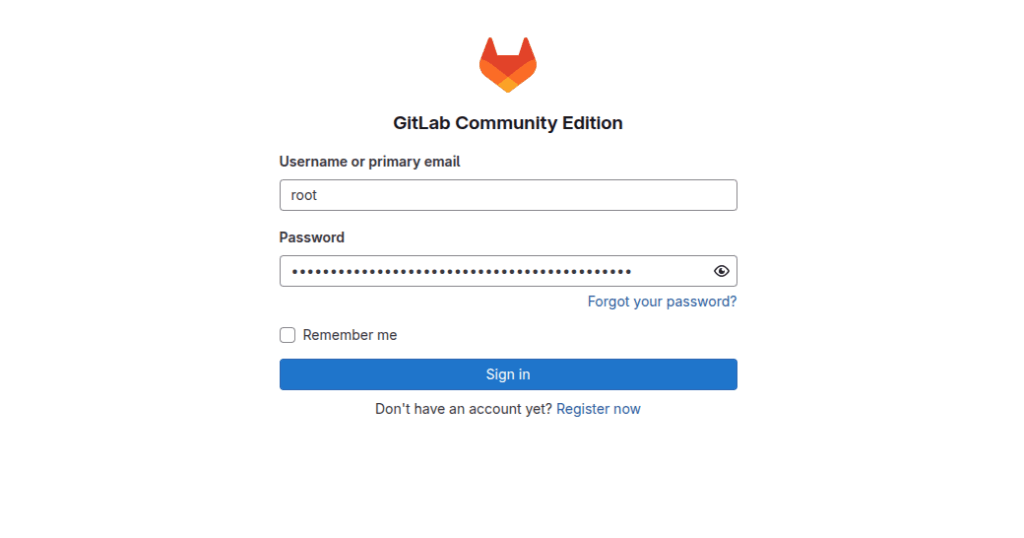
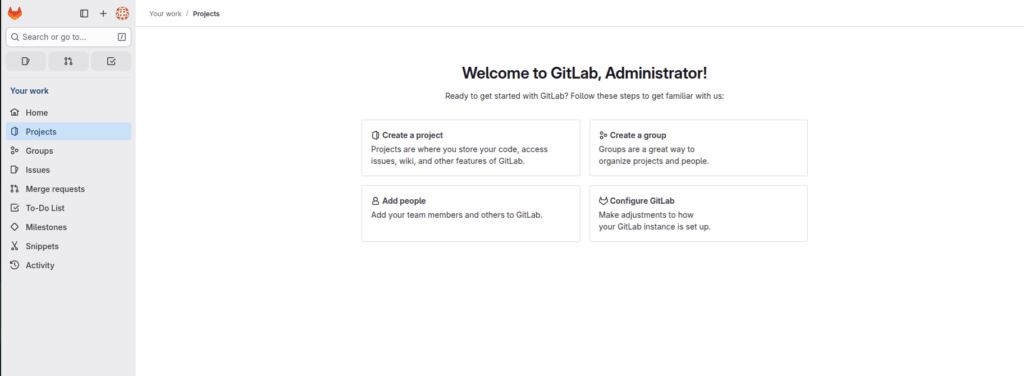
Once logged in, you will be redirected to the GitLab Admin dashboard:
Bringing it all together
That’s it. You successfully installed GitLab on Ubuntu 24.04.
If you encounter difficulties with this installation, our Linux administrators will assist you with any aspect. You need to sign up for one of our monthly server management or per-incident server support plans. Please do not hesitate to contact us at your convenience. We are available 24/7.
If you liked this post on how to install GitLab on Ubuntu 24.04, please share it with your friends or leave a reply below. Thanks.
